d
Showing posts with label Formulas. Show all posts

Excel Shortcut Keys: Using Ctrl + T (Create a Table)

Excel Shortcut Keys

Ctrl + T
Display the Create Table dialog box. Or Create a range into Table.


Excel Shortcut Keys: Using Ctrl + S (Saves the active file)

Excel Shortcut Keys

Ctrl + S
Save the active file with its current file name, location, and file format.


Excel Shortcut Keys: Using Ctrl + R (Fill Right command to copy)


Ctrl + R

Uses the Fill Right command to copy the contents and format of the leftmost cell of a selected range into the cells to the right.


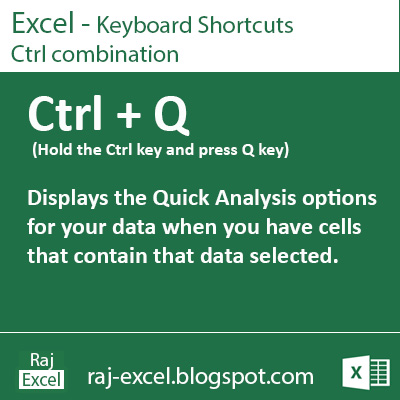
Excel Shortcut Keys: Using Ctrl + Q (Quick Analysis option)


Ctrl + Q

Display the Quick Analysis option for your data when you have cells that contain data selected


Excel Shortcut Keys: Using Ctrl + P (Print file)

Ctrl + P

Display the Print tab in Microsoft Office Backstage view. or Print the sheet/file


Excel Shortcut Keys: Using Ctrl + O (Open a file)

Ctrl + O

Display the Open dialog box to open or find a file


Formulas


The formulas are what make a spreadsheet a spreadsheet. Excel allows you to introduce flexible used values ​​(or text) in cells to calculate the result. When you enter a formula in a cell, the result of the formula appears in the cell. If you change any of the cells used by a formula, the formula recalculates and displays the new result.
Formulas can be simple mathematical expressions, or can use some powerful functions that are built into Excel. In Picture shows an Excel spreadsheet set up to calculate the monthly loan payment. The worksheet contains the values, text and formulas. The cells in column B contain text. Column C contains four values ​​and two formulas. The formulas are in cells C7 and 11. Column E, as a reference, shows the actual content of the cells in column C.

Formulas
raj-excel.blogspot.com


Recommended for You

LinkWithin

Related Posts Plugin for WordPress, Blogger...