d

Gift Planner Excel Online Templates


 Gift Planner Excel Online Templates

This Templates run in Microsoft Excel Online


 Save time and easily organize your gift planning with this simple-to-use template.

Ahorra tiempo y organizar fácilmente su planificación de regalo con esta plantilla fácil de utilizar.

节省时间,方便地与这个简单易用的模板整理您的礼品策划。

समय बचाने के लिए और आसानी से इस सरल करने के लिए उपयोग टेम्पलेट के साथ अपने उपहार नियोजन का आयोजन।

توفيرا للوقت وبسهولة تنظيم التخطيط هديتك مع هذا القالب بسيطة للاستخدام.


 Click here to download

Excel PowerPivot: EDATE Function (DAX)


EDATE Function (DAX)

Syntax:

EDATE(<start_date>, <month>)

Parameters:

start_date: A date in datetime or text format that represents the start date.

month: An integer that represents the number of months before or after start_date.

Action:

Returns the date that is the indicated number of months before or after the start date. Use EDATE to calculate maturity dates or due dates that fall on the same day of the month as the date of issue.


Excel PowerPivot: DATEVALUE Function (DAX)


DATEVALUE Function (DAX)

Syntax:

DATEVALUE(<date_text>)

Parameters:

date_text: Text that represents a date.

Action:

Converts a date in the form of text to a date in datetime format.


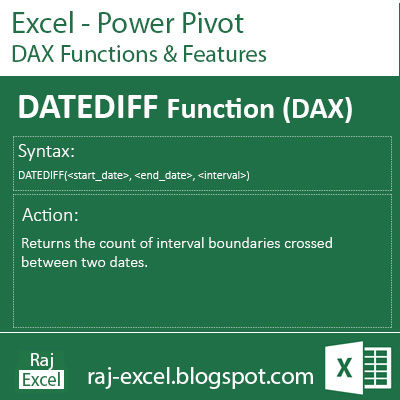
Excel PowerPivot: DATEDIFF Function (DAX)


DATEDIFF Function (DAX)

Syntax:

DATEDIFF(<start_date>, <end_date>), <interval>)

Parameters:

start_date: Any DAX expression that returns a datetime value.

end_date: Any DAX expression that returns a datetime value.

interval: The interval to use when comparing dates. The value can be one of the following:

  • SECOND

  • MINUTE

  • HOUR

  • DAY

  • WEEK

  • MONTH

  • QUARTER

  • YEAR

Action:

Returns the count of interval boundaries crossed between two dates.


Excel Keyboard Shortcuts: Ctrl + Enter

Ctrl + Enter

Hold the Ctrl key and press Enter

Action:

Fills the selected cell range with the current entry.


Excel Keyboard Shortcuts: Ctrl + Spacebar

Ctrl + Spacebar

Hold the Ctrl key and press Spacebar

Action:

Selects an entire column in a worksheet.


Excel Keyboard Shortcuts: Ctrl + Arrow Key

Ctrl + Arrow Key

Hold the Ctrl key and press Arrow Key

Action:

Moves to the edge of the cuttent data region in a worksheet.


Excel Keyboard Shortcuts: Ctrl + 9

Ctrl + 9

Hold the Ctrl key and press 9 (eight numaric key)

Action:

Hides the selected rows.


Excel Keyboard Shortcuts: Ctrl + 8

Ctrl + 8

Hold the Ctrl key and press 8 (eight numaric key)

Action:

Display or hides the outline symbols.


Excel Keyboard Shortcuts: Ctrl + 6

Ctrl + 6

Hold the Ctrl key and press 6 (six numaric key)

Action:

Alternates between hiding and displaying objects.


Recommended for You

LinkWithin

Related Posts Plugin for WordPress, Blogger...